
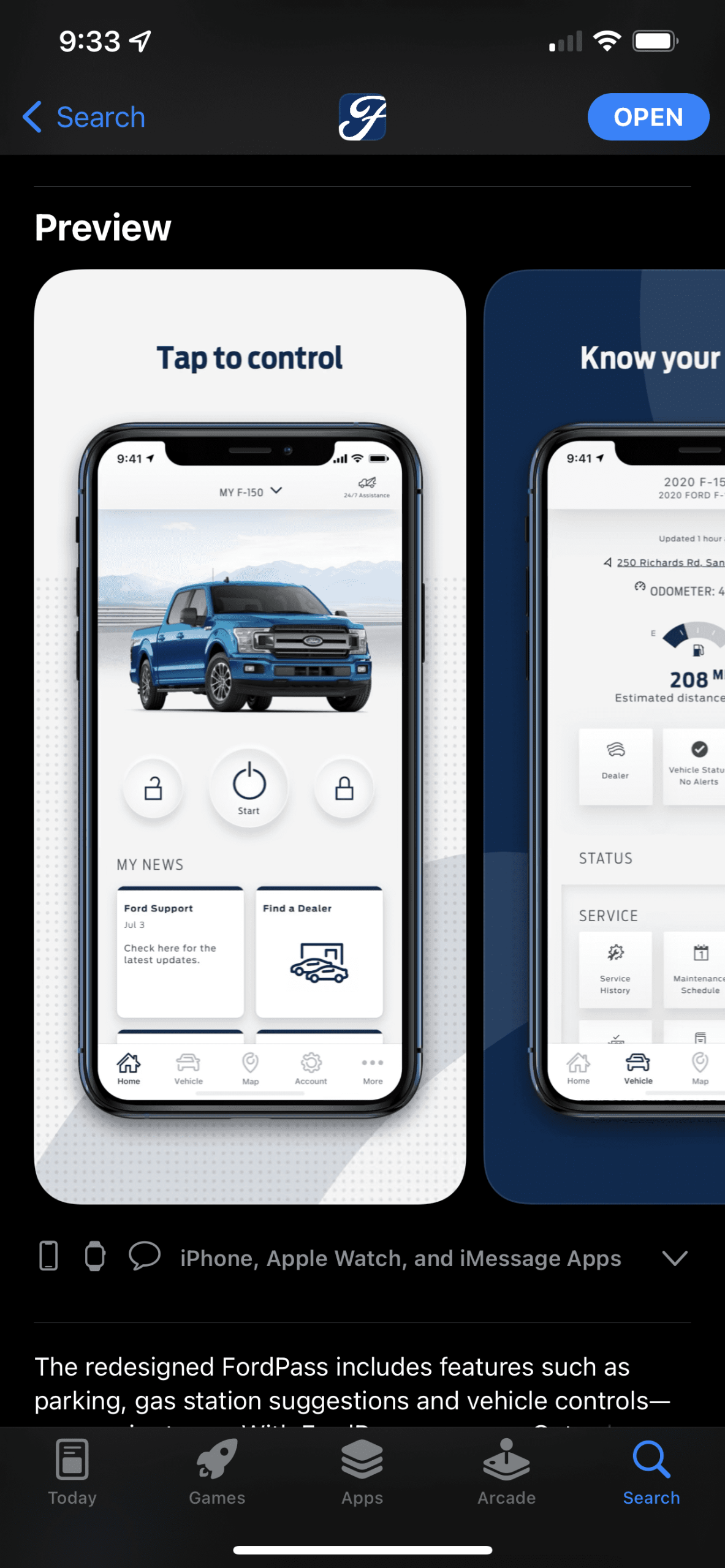
FordPass is an app that provides you with remote access to your vehicle. It can start the car, unlock it, and provide a great amount of helpful information for your new Ford vehicle. The app continues to be updated and provides new features like tracking your trips, checking in on your vehicle’s health with oil life, tire pressure, and more. New features to FordPass continue to be added with over-the-air updates and it provides some amazing benefits to being a new vehicle owner.
Unfortunately, as is the case with technology, sometimes problems arise. Truth be told, nothing is worse when it’s cold outside and your new vehicle like the Ford Timberline won’t properly start in the app. We understand the frustration and hopefully, some of our tips below will provide you with some solutions to the FordPass remote start not working.
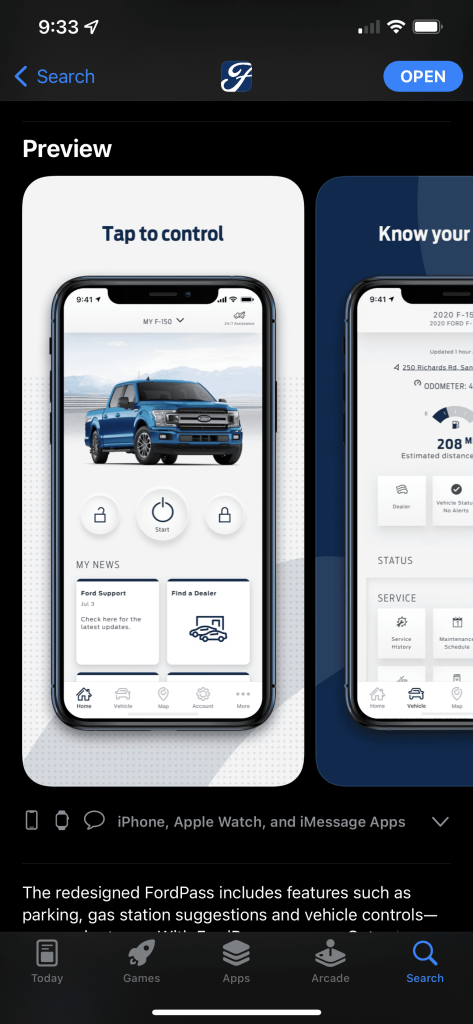
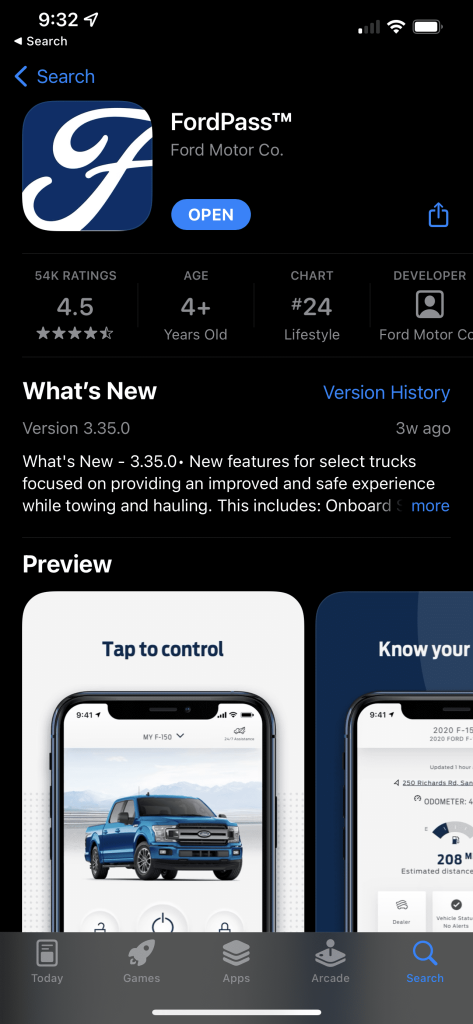
Check The FordPass App For Updates & Reboot Your Phone
It’s frustrating when you’re in a hurry and your remote start doesn’t work. The FordPass app has been known at times to have some issues attached to it but a lot of scenarios we see come down to the user or device error. One of those issues is the App not being updated.
It can vary from device to device but sometimes you may need to manually update the FordPass app through the Google Play or Apple App Store to ensure it remains working properly.
Ford is continually updating its app with bug fixes and new features so remember to update it, especially when a new Android or iOS update is pushed out.
Force Quite The App or Restart Your Phone
Before we move on to the next step, one thing we suggest trying is to force quit the app on your device and re-opening. If you’re unsure of how to force quit apps on your phone then a simple solution is to re-start it.
This should provide a simple and fresh start. Before doing anything else on your phone please open the FordPass app and try to remote start your vehicle. If this doesn’t work please continue to the next section.
Delete The App, Clear Its Cache and Re-Install Everything
If you’re still struggling to remote start your Ford vehicle the next step is to start with a fresh install. In this scenario, we highly recommend you wipe the app clean from your Apple or Android phone and ensure that you clear the settings, cache, and data within the phone attached to the app.
You may ultimately end up having to re-sync the vehicle to your phone which leads us to the next suggestion…
Re-Complete Vehicle Authorization To The App
If you don’t feel like deleting the app and cleaning it from your device you can try skipping the second step and heading to this one. Logically with a fresh install of the app, we would then need to re-add our vehicle to the app and start with fresh sync between our phone and vehicle.
How to connect your vehicle to FordPass App
If you’re still having problems even after trying all of the above (in succession preferably) then we can move on to a few other things.
Test Your Battery
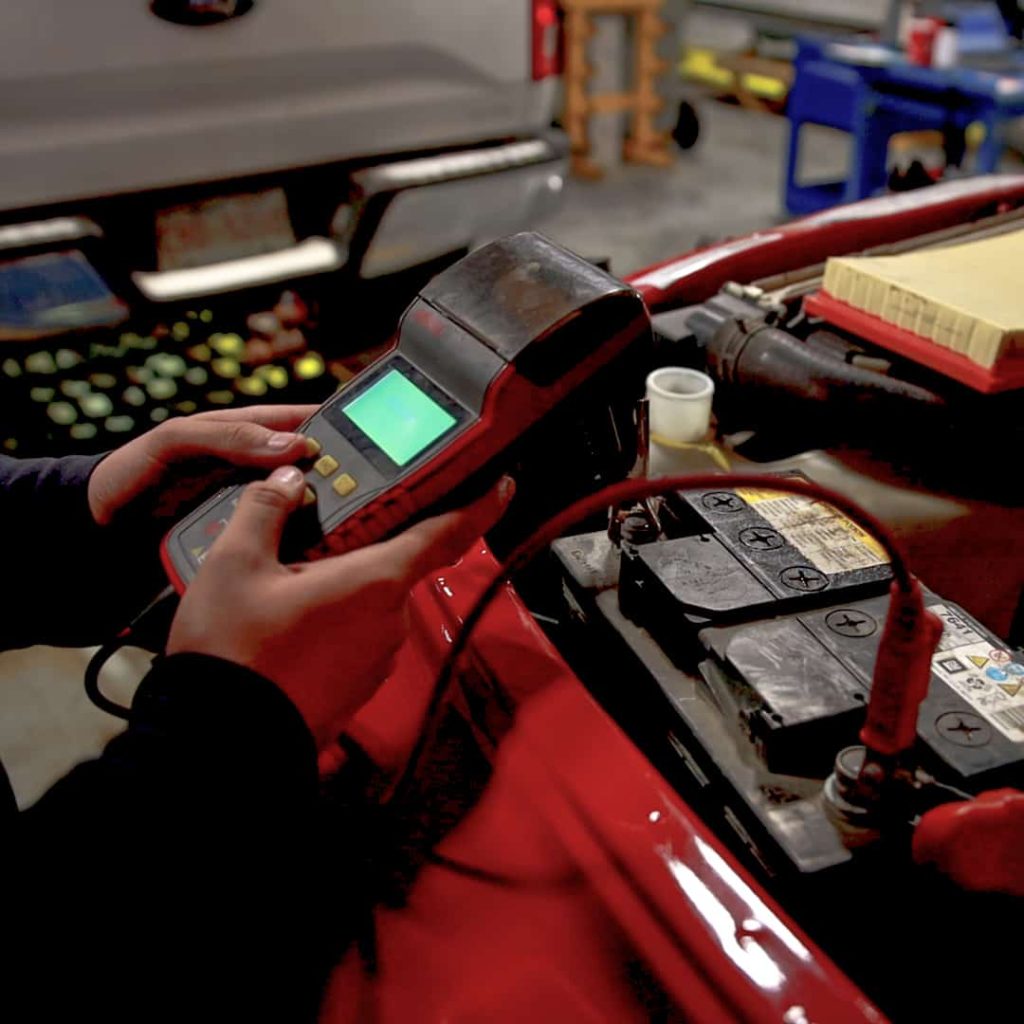
Battery Test & Replacement
If all else fails with the above we suggest, if you can, testing your vehicle’s battery. If you’re uncomfortable with doing this yourself please bring it to Windsor Ford in Grande Prairie, AB, and have one of our team members check it for you.
Sometimes if your vehicle has a low battery it may cause it to operate in a deep sleep mode to save power. If this is the case you may need a new battery for your vehicle or to have it restore some of its power.
Try Multiple Locations (Just In Case)
In rare cases, we’ve heard of some of our customers being able to remotely start their vehicles from home but not in other locations. One final step to testing connection issues is to ensure it’s not working anywhere. If it starts at home but not at work then it may be an issue with the Wi-Fi or your cellular provider.
Try either or, try to connect to a different network where you’re having trouble (if you can) and try to remote start. One option is to use a friend’s mobile hotspot if you have access to it to try a different network address altogether.
If all else fails…
Bring The Vehicle To Your Service Department To Check Cellular Module Or Provide A Software Update
One thing you can check is within the vehicle settings if ensure you have an ESN for the onboard modem. If it ends up being blank (no ESN), it’s possible your modem may be bad.
In rare cases, the vehicle may require a software update to it. It’s possible, not common though, that the vehicle is struggling with the battery and sleep mode to remain connected. If this is the case your Ford certified service technician will be able to help diagnose any other uncommon issues the above steps we’ve mentioned should fix.